
Sending an e-mail
To send an e-mail, simply select at least one report type “Load Sheet”, “Rate Confirmation”, “Customer Rate Agreement”, “POD Request” on the brokerage's print control form and be sure to check the “Reports by Email” box. After that, click the “Ok” button, instead of printing the report, a form for additional e-mail settings will open. In this form, you must enter the address of the recipient or the address to which a copy will be sent.
You can also change the subject.
By default, the subject contains the name of the report type and the load number to which it refers, for example “Information for Load 30345 (Attachment)”
A + button has been created to facilitate changing the subject or creating templates
this button displays a list of all field names that can be used for a more accurate description.
When selecting a field, a template is added to the text, which will be replaced with real data already at the time of sending the letter.
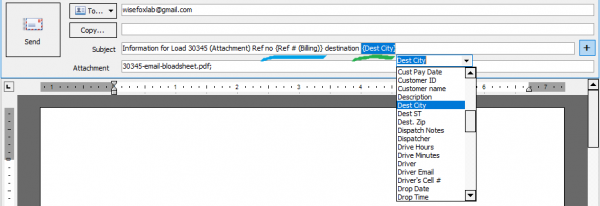 This template can be copied and added to the next letter by simply pasting from the clipboard.
The result of replacing the variables in the template can be seen only in the real letter, so for testing you need to send the letter to your postal address and then check it.
This template can be copied and added to the next letter by simply pasting from the clipboard.
The result of replacing the variables in the template can be seen only in the real letter, so for testing you need to send the letter to your postal address and then check it.
Data in the load document:
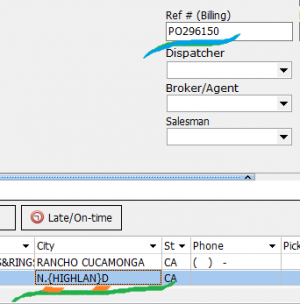
The result is in the sent letter:



