This is an old revision of the document!
Table of Contents
ProMiles SDK testing
Presetting
ProMiles API is used by both Brokerage Dispatch and Truck Dispatch
Action: Prepare new Brokerage load and new Truck load
ProMiles SDK activation check
Action:
- Open the “Brokerage Dispatch” form, look at the “Update miles” button and the “Mileage Utilities” menu.
- Open the “Truck Dispatch” form, look at the “Calc miles” button and the “Mileage Utilities” menu.
Excpectation They must be inactive.
Action: Remember their real state
Action: Open “System → Settings” menu
Expection: Form “Dr.Dispatch System Configuration” will open
Action: Select “ProMiles SDK” from the left column and look at the checkbox “Use ProMiles Prime”.
Check: If the checkbox is not checked, the “Update miles” button and the “Mileage Utilities” menu should be inactive.
If everything is correct - check the box, and proceed to the next step
Checking work with correct settings
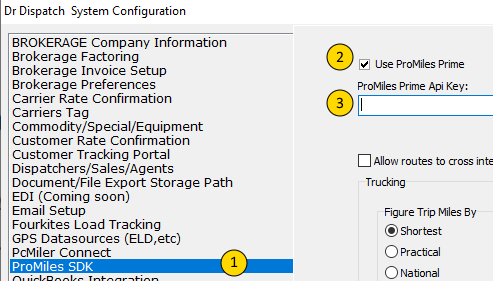 Actions:
- Select System → Setting → ProMiles SDK (1)
- Check the box “Use ProMiles Prime” (2)
- Enter the correct key in the “ProMiles Prime API key” field (3) and close window
- Reopen broker window Be sure to close and open
- Select the load created for this test
Check calculating miles
The check is carried out twice, for brokerage and and for Truck loading.
Brokerage load
Action: Open the Broker load created in preparation for the test. Click “Update Miles” button
Expection: The length of the route must be calculated and the value entered in the field “miles”
An approximate check of the calculated value can be done by building a route in Google maps.
Action: Click on “show route”
Expection: A Google map will open in the browser window with a built route from the first to the last point
The length of the route obtained on a Google map and calculated by “ProMiles” may differ slightly due to different principles for building a route for cars and trucks
Action: You need to add one more stop, repeat the calculation check
Expection: The distance in the Miles field should increase.
Action: Check it again on google map
Action: Swap 2nd and 3rd stops
Expection: The route should be built differently and the distance in the Miles field should change.
Action: Check it again on google map
Truck load
Open the Truck load created in preparation for the test.
Repeat all the steps as for the brokerage load, but the mileage calculation button here is called “Calc Miles”
Check Quick Mile/Routing
This function calls the same window both in the Brokerage Dispatcher and in the Cargo Dispatcher, and therefore it is enough to check once
Action:
Checking work with incorrect settings
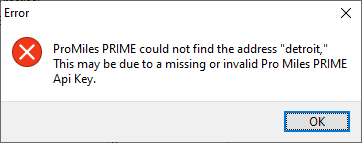
Action: Do not fill in the “ProMiles Prime API key” field (or fill it with a random set of characters) and close window
Action: Reopen broker window Be sure to close and open
Action: Press “Update Miles”
Excpection: Miles field must by 0
Action: Quick Mile/Routing
Excpectation: Show error message