
Table of Contents
Action: Create Truck Load
Expectation Completed document ready for further processing
Action: Switch to “Load Board” tab
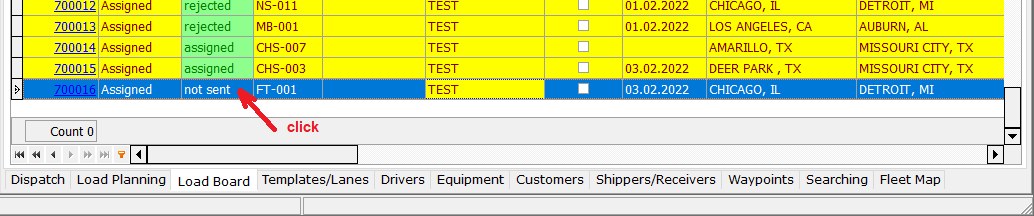 Find the line with the newly created document
Click on the DRD App field of this document (in a new document, this field has the value “not send”)
Expectation: A new “Driver Mobile Manager Load” window will appear.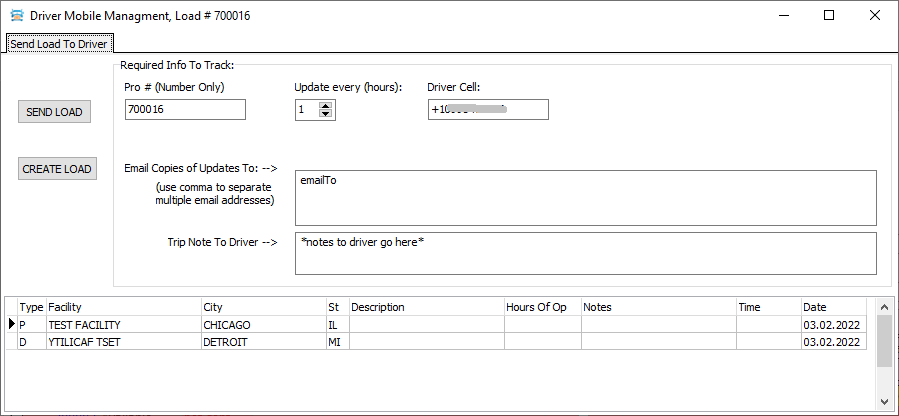
If the system is not using or running the "ServiceDRD" service:
Action Press “SEND LOAD” button
Expectation If you received a message “Driver ### cannot have more than one assigned load”
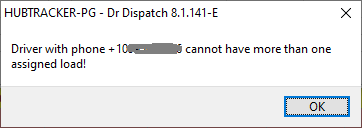
This means that there is an unprocessed download in the review queue in the mobile application.
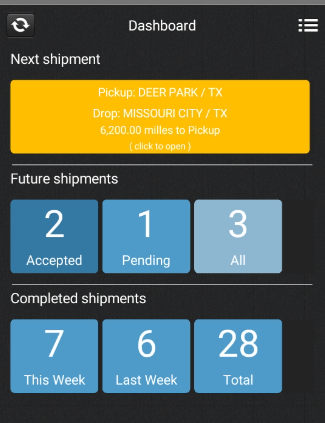 Action: It must either be accepted or rejected.
 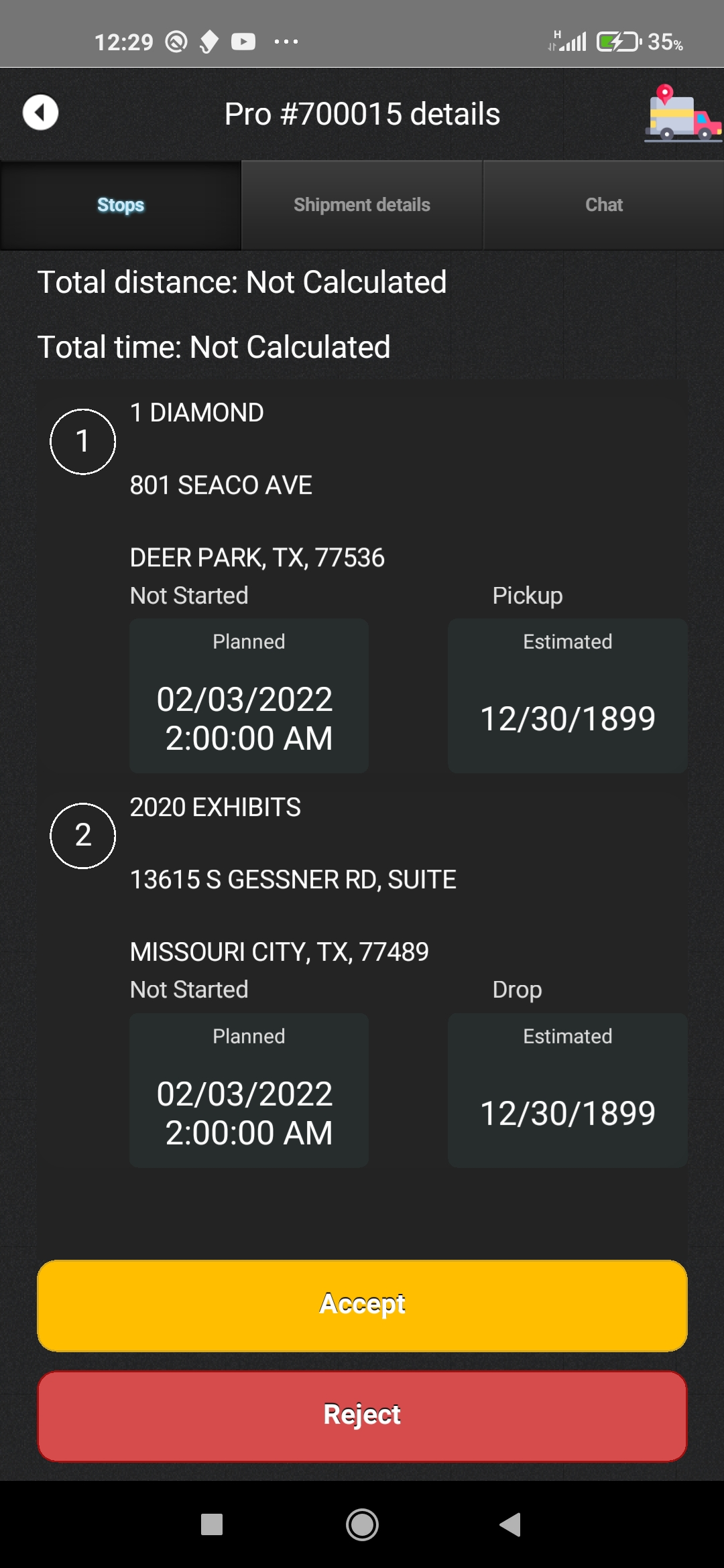 After that, you need to repeat pressing the SEND LOAD button.
Expectation:
If the system is using and running the "ServiceDRD" service
Action: Press “CREATE LOAD” button from desctop.
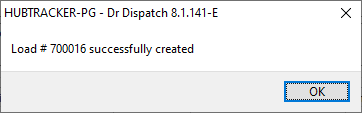
Expectation: Show message “Load # succesfully created”
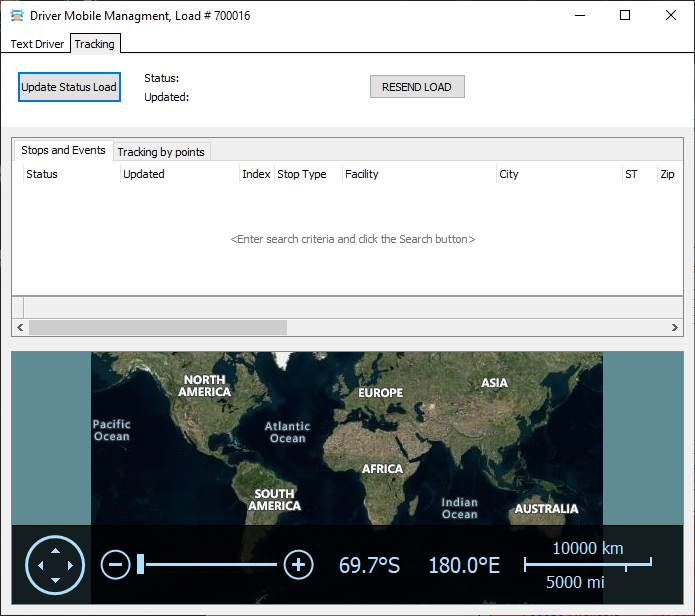
And after closing it, the Driver Mobile Manager Load window will look like this.
Expectation: Regardless of the method of sending the load (through the service or “forced”) after a short period of time (about 2 minutes in case of push sending and about 6 minutes when sending using the service) in the mobile application, a message should appear on a yellow background about the presence of an unprocessed load.
Action: It must be accepted (or rejected)
Следующий шаг: Исправление/дополнение лоада диспетчером.
To do this, open this document in the Dispatch tab. To do this, just click on the document number on the “Load Board” tab Action: Add one/several stop(s)
Expectation: The document will be modified.
If the load is sent through the service, then it is enough to wait 6 minutes If sending is forced, then
Action: Switch to “Load Board” tab. Find a document, click on the field value DRD App
Expectation: The form should look like this To resend the document, press “RESEND LOAD”


