
This is an old revision of the document!
Table of Contents
Truck-Dispath Customer Rate calculating
There are different options for calculating the base rate
Basic Rate options
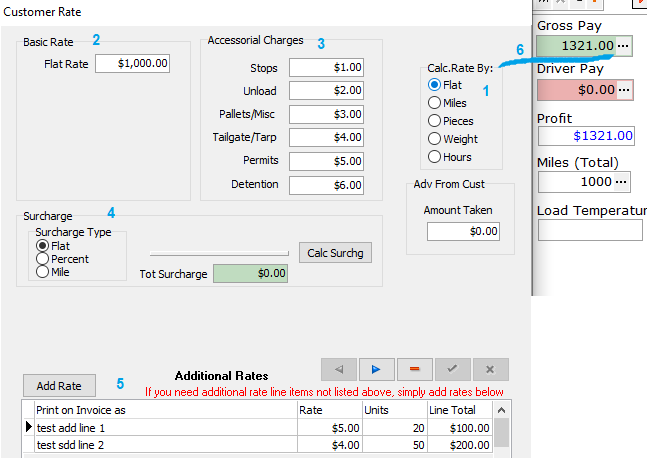 The amount consists of 4 main parts
- Basic Rate (2)
- Accessory Charges (3)
- Sucharge (4)
- Additional Rates (5)
The Basic Rate can be calculated in several different ways, moreover depending on the “Calc.Rate By” switch (1).
That is,
- “Basic Rate”
- + Sum of all fields “Accessorial Charges”
- + Sum from “Tot Surcharges”
- + Sum of all fields “Line Total” from the Grid “Additional Rates”
- = “Gross Pay”
The calculated amount is not immediately visible, it can only be seen in the “Gross pay” field (6) after saving the window.
Flat Rate
To begin:
- Set the Rate Bai and Surcharge Type switches to flat.
- Enter 1000 in the Flatrate field.
- Fill in all “Accessorial Charges” fields with different values. This will allow you to see in one save whether all the amounts have been used and if some are not, then determine which one.
- Fill in a couple of lines in the Additional Rates grid. For example, as in the first picture.
Expectation: Gross Pay = $ 1321.00
Percent Surcharge type
Action Select the percentage of the “Surcharge type” switcher. (4a)
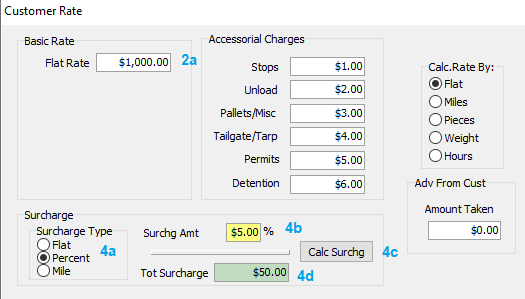
Expectation: The “Surchg Amt” field will be displayed. (4b)
Action You need to add a percentage to it (for example, 5) and press “Calc Surchg” button.
Expectation: “Tot surcharge” field (4d) = “Flat Rate” (2a) multiple “Surchg Amt”% (4b/100) i.e. it should be $50
Miles Surcharge type
Action Select the miles of the Surcharge type switcher. (4a)
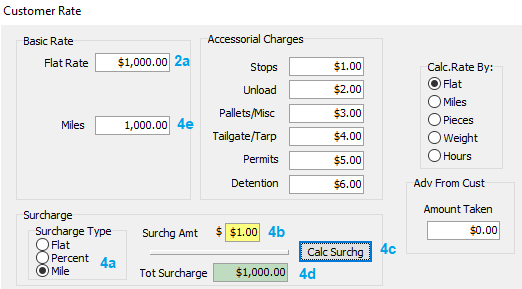 Expectation: The “Surchg Amt” field will be displayed. (4b)
“Miles”field (4e) will be displayed
Action You need to fill in miles (for example 1000) and AMT (for example $1) and click “Calc Surchg”
Expectation: “Tot surcharge” (4d) field = “Flat Rate”(4e) multiple “Surchg Amt”(4b) i.e. it should be $1000
Miles
Action switch the radio switch to “Miles”
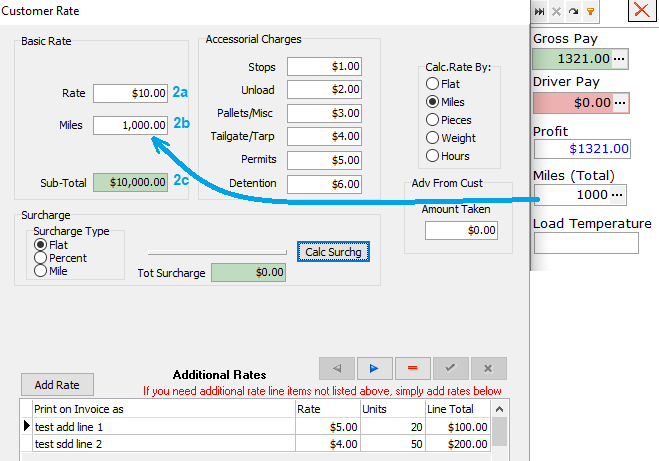 When you switch the radio switch to any other value than Flat, the sub-total field appears in the Base rate section. And now you need to add the sums of the remaining sections to it.
Subtotal value itself for all “calc.rate by” values (except the weight, one more coefficient and one arithmetic operation are added there) = Multiply “Rate” by value from field 2 (miles, pieces, or hours)
Please note that when switching to miles in the miles field, the value of “miles” recorded in the “load” document itself is loaded. But then this value can be changed. In this case, after saving the calculation, the value in the “loads” will NOT change. The value is passed only unidirectionally.
Expectation:
- Rate (2a) * Miles (2b) = Sub-Total (2c)
Pieces
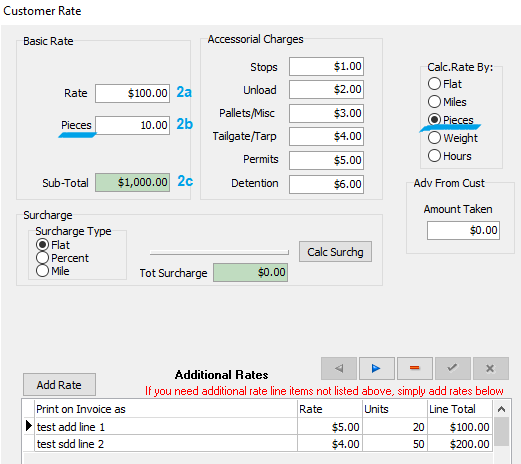 Expectation: Rate (2a) * Pieces (2b) = Sub-Total (2c)
Hours
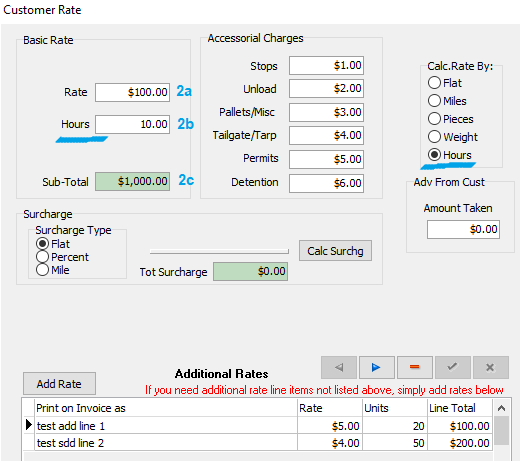 Expectation: Rate (2a) * Hours (2b) = Sub-Total (2c)
Weight
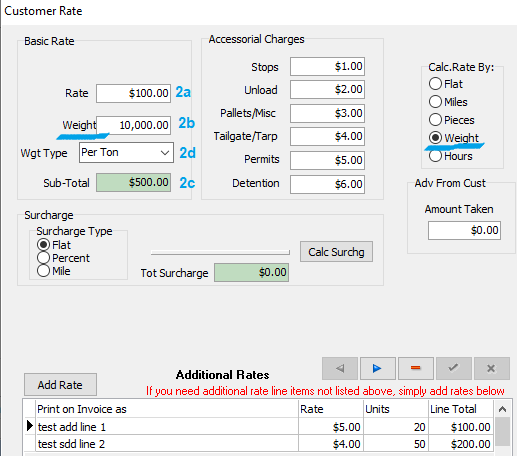 Expectation: Rate (2a) * Weight (2b) / Wgt.Type coefficient (2d) = Sub-Total (2c)
Wgt Type
Action: Select Weight from “Calc.Rate By:” radiobutton
The weight subtotal formula is a little more complicated. In addition to multiplying the Bet by Weight, there is also a division into different coefficients depending on the value of the weight type selected in the field.

Please check all options
Expectation example:
- Corn (bushels 56): Rate 560$ * Weight 1000 / 56 = Sub-Total 10 000$
- Beans (bushels 60): : Rate 600$ * Weight 1000 / 60 = Sub-Total 10 000$
- Oats (bushels 32): : Rate 600$ * Weight 1000 / 32 = Sub-Total 18 750$
- Wheat (bushels 48): : Rate 600$ * Weight 1000 / 48 = Sub-Total 12 500$
- Per Ton (bushels 2000): : Rate 600$ * Weight 1000 / 2000 = Sub-Total 300$
- Per Cwt (bushels 100): : Rate 600$ * Weight 1000 / 100 = Sub-Total 6 000$


