
This is an old revision of the document!
Table of Contents
Checking the correctness of creating/deleting TRK.load templates
Step 1. Initial template creation
Action: Create truck load
Actopn: Click the menu “Utilities - Add to Re-occuring Load Templates” 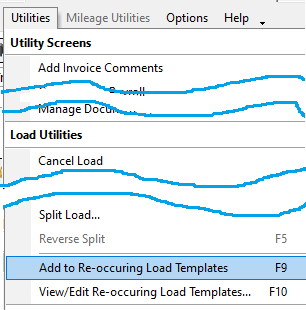
Expectation: A confirmation window appears 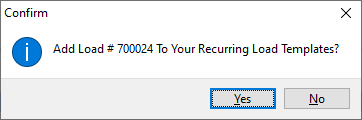
Actopn: Click “Yes”
Expectation: A message appears prompting you to enter a name for the new template 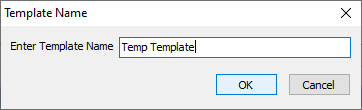
Expectation: The “Trucking Load Templates” window appears
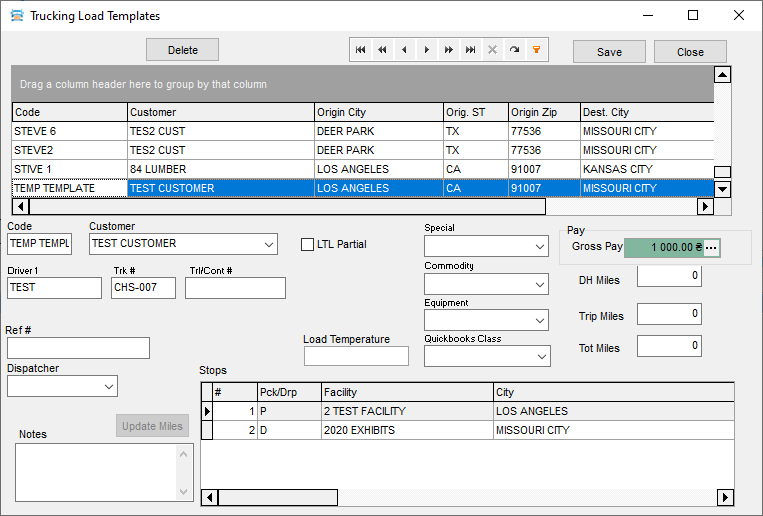
Let's check that all fields are filled in as in the original load. We check all the data of the Stops grid, they must also match the data from the selected download.
Action: Make sure the correct (just created) template is selected in the grid, then click the delete button
Expectation: The line with templates “TEMP TEMPLATES” will disappear from the grid.
Action: Close window.
Step 2. Recreating a Template
Action: Create new truck load
Actopn: Retry template creation
- Click the menu “Utilities - Add to Re-occuring Load Templates”
- Confirm
- Enter the previous template name again
Expectation: The “Trucking Load Templates” window will appear, containing a template that has the same name as the previous (deleted) one, but with different load data
Action: Check all data and stops. They must be from a new load, not from a significant deleted one.
Action: Close window
Step 3. Attempt was made to create a template with a name already used
Action: Select the load created for step 1.
Actopn: Retry template creation
- Click the menu “Utilities - Add to Re-occuring Load Templates”
- Confirm
- Enter the previous template name again
Expectation: A message should appear 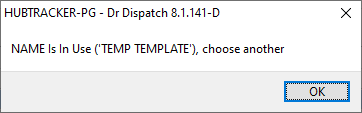
Step 4. Attempt was made to create a template with a name already used
Actopn: Retry template creation
- Click the menu “Utilities - Add to Re-occuring Load Templates”
- Confirm
- Enter a new template name, such as “Test template”
Expectation: The “Trucking Load Templates” window will appear.
Action: Checking the templates created in steps 2 and 4 (“TEMP TEMPLATE” and “TEST TEMPLATE”) by switching between them directly in the grid.
- Let's check that all fields are filled in the same way as in the initial loads,
- and check the fields of the stop grid.
Expectation: They must contain the correct data.


